How to Use Random Wheel For Fun
Welcome to Random Wheel For Fun – the free online spin wheel picker that runs entirely in your browser. Whether you want to make a quick decision, run a classroom activity, or just have fun, this guide walks you through everything step by step.
← Back to Random Wheel For Fun
Step 1 – Add Items to the Wheel
The first thing you need to do is fill the wheel with your choices. You can add plain text entries in seconds:
- Click the input field near the top of the page (it says "Add a name or choice…").
- Type the name or choice you want to add — for example "Pizza", "Team A", or "Yes".
- Press Enter on your keyboard or click the + Add button.
- The item appears immediately as a new colored slice on the wheel and as a tag above it.
- Repeat for all the items you need. You can add up to 30 items in total.
Each item tag shown above the wheel has a Remove button so you can delete any entry at any time without clearing the whole wheel.
Auto-Remove Duplicates
If you want to make sure no entry appears twice, enable the Auto-remove duplicates toggle. When active, the wheel will automatically reject any text entry that already exists in the list. This setting applies to text items only — icon entries are not affected.

Step 2 – Add Icons from the Built-In Catalog
In addition to text, you can add colorful SVG icons from the built-in catalog. Icons are a great way to make the wheel more visual and fun, especially for younger users or party games.
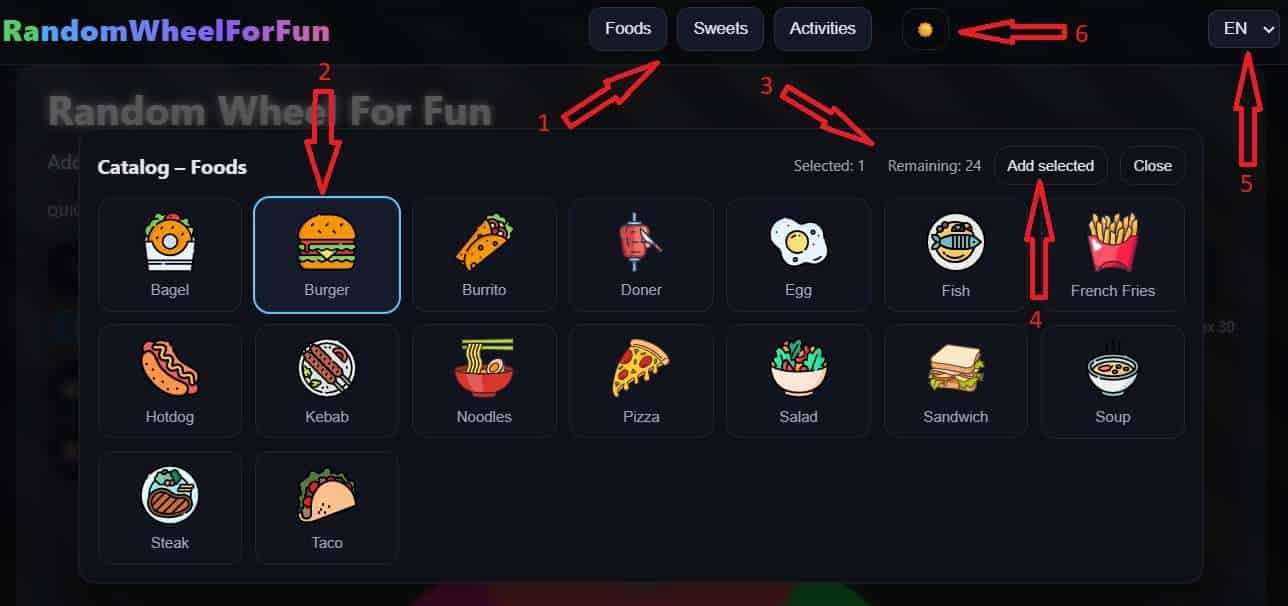
- Click one of the category buttons in the top navigation bar — Foods, Sweets, or Activities — to open the icon catalog for that category.
- Browse the available icons. Click any icon to select it; selected icons are highlighted with a colored border.
- You can select multiple icons at once before adding them.
- Check the Selected and Remaining counters at the top of the catalog to see how many icons you have chosen and how many slots are still available.
- Click Add selected to add all chosen icons to the wheel at once.
- Click Close to dismiss the catalog without adding anything.
Text items and icon items can be mixed on the same wheel freely.
Step 3 – Use Quick Start Presets
Don't want to type anything? The Quick Start section lets you load a complete, ready-made wheel with a single click. The following presets are available:
- Yes / No – The classic two-option decision wheel. Great for simple choices.
- True / False – Ideal for quiz games and classroom activities.
- 🎲 1–6 – A virtual dice roller. Roll a fair six-sided die anytime.
- 1–10 – Pick a random number between 1 and 10.
- Weekdays – Spin to randomly select a day of the week, shown in your browser's language.
- Months – Randomly pick one of the 12 months of the year.
- A / B / C / D – A four-option multiple-choice wheel for quizzes or decisions.
- Teams – Randomly select a team (Team 1, Team 2, Team 3, Team 4).
After clicking a preset the wheel is instantly filled with the preset items. You can spin right away or further customize the list by adding or removing entries before spinning.

Step 4 – Spin the Wheel
Once you have at least one item on the wheel, you are ready to spin:
- Click the START button in the center of the wheel, or click the Start button displayed below the wheel.
- The wheel will begin spinning and gradually slow down before landing on a random result.
- A result dialog will appear showing the selected item. Close the dialog and spin again as many times as you like.
The spin uses your browser's built-in randomness algorithm, ensuring that every item has exactly the same probability of being selected. No item is ever prioritized or suppressed.
Step 5 – Manage Your Results
Random Wheel For Fun includes several options to help you run elimination rounds, keep the wheel fair, and save your setup for next time:
Remove After Pick
Enable the Remove after pick toggle to automatically remove the winning item from the wheel after each spin. This is perfect for elimination games, tournaments, or situations where each option should only be chosen once — such as assigning tasks or selecting raffle winners.
Remember on This Device
Enable Remember on this device to save your current wheel items and settings to your browser's Local Storage. The next time you open the site on the same device and browser, your wheel will be restored exactly as you left it. No data is ever sent to a server — everything stays locally on your device.
Clear All Items
Click the Clear button below the wheel to remove all items at once and start fresh. Individual items can also be removed one at a time using the Remove button on each item tag above the wheel.
Interface Settings
A few additional settings are available in the top bar:
- Language selector – Switch the interface language using the dropdown in the top-right corner. Supported languages include English, German, French, Spanish, Turkish, Italian, Russian, Azerbaijani, and Arabic.
- Dark / Light mode – Click the theme toggle icon (sun or moon) next to the language selector to switch between dark and light themes. Your preference is remembered automatically.
Tips for Getting the Most Out of the Wheel
- Use the Yes / No preset for quick everyday decisions — what to eat, which movie to watch, or who goes first in a game.
- In the classroom, use the name wheel technique: add student names and spin to randomly pick who answers next. It keeps participation fair and fun.
- For team sports or group work, add participant names and enable Remove after pick to build balanced teams one by one without repetition.
- Use the icon categories (Foods, Sweets, Activities) to build a visual wheel for younger children who may not read yet.
- Combine text and icons on the same wheel — for example, mix food names and food icons for a meal planning spinner.
- The wheel works on mobile devices too — tap the screen to spin just as you would on desktop.
Still Have Questions?
Check out the FAQ page for answers to 30+ common questions about Random Wheel For Fun, including questions about privacy, randomness, the mobile app, and more.